
Introduction
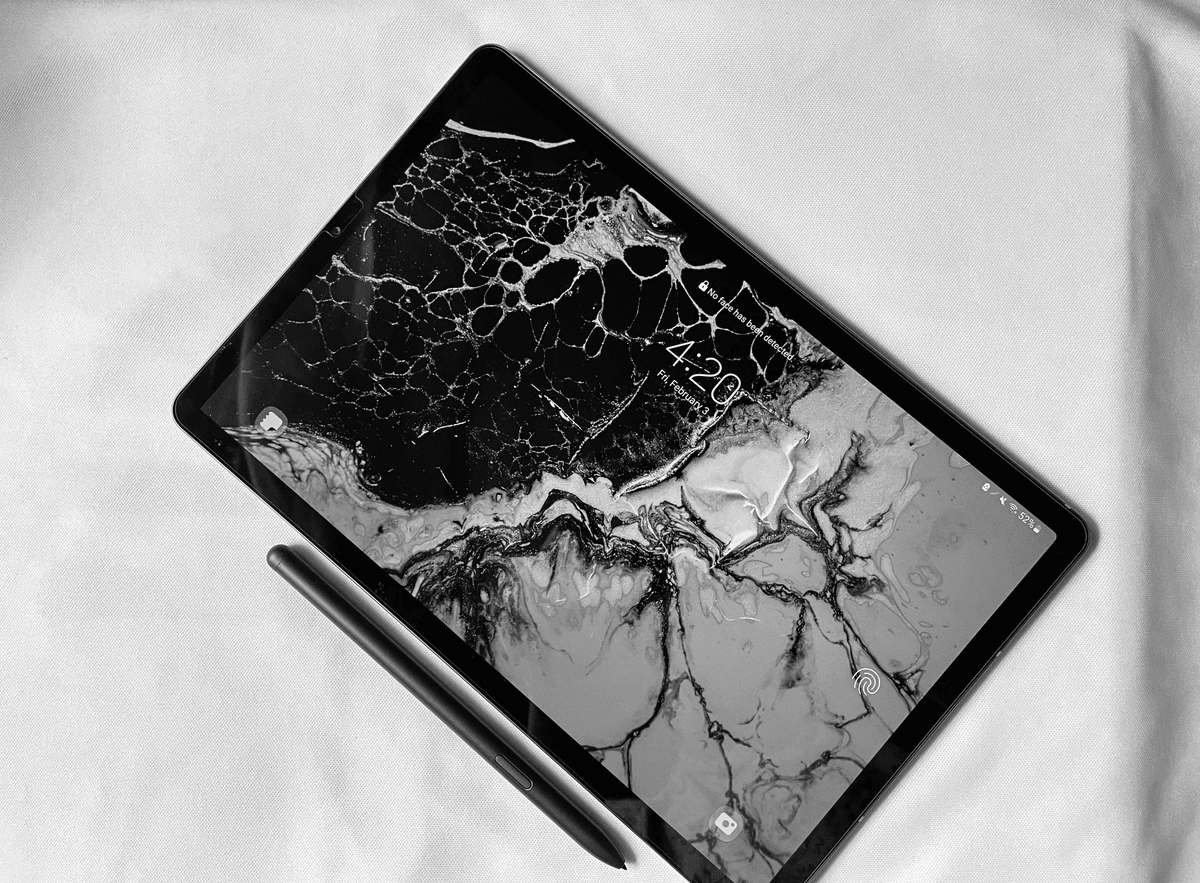
Understanding Tablet PC Defects is essential for anyone who relies on their device daily. From broken pixels to overheating batteries, these issues can disrupt productivity and entertainment alike. Recognizing common problems early can help you avoid costly repairs and extend your tablet’s lifespan.
When a tablet develops broken pixels or lines in the display, it’s more than just a cosmetic issue—it's a sign that your screen may need professional attention. Foreign material behind the screen, such as dust or debris, can also cause image distortions and frustration. Additionally, dust inside the camera module often leads to blurry photos, while an unresponsive touch screen hampers navigation and usability.
Timely fixes for Tablet PC Defects not only save money but also prevent further damage down the line. Addressing issues like overheating batteries promptly reduces safety risks and battery degradation. Staying vigilant about these common problems ensures your device remains reliable and functional longer, saving you time and cash in the long run.
Broken Pixels or Display Lines
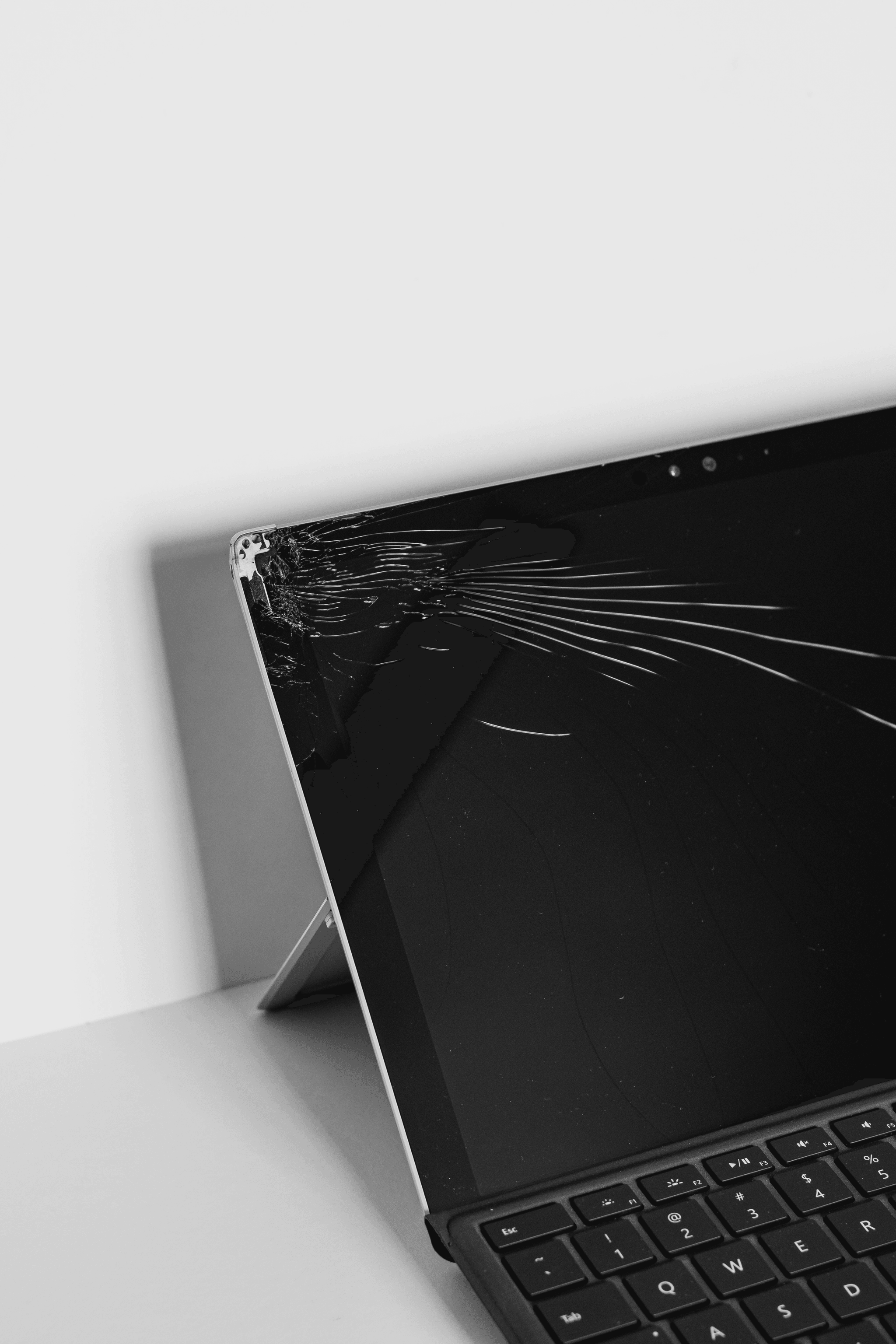
When your Tablet PC starts acting up with strange dots or streaks across the screen, you’re likely dealing with broken pixels or display lines. These issues can turn your sleek device into a pixelated mess, making it tough to read or enjoy media. Recognizing these signs early can save you from more costly repairs down the line related to Tablet PC Defects.
Broken pixels often appear as tiny dots that refuse to change color, while display lines look like streaks running vertically or horizontally across the screen. If your tablet shows irregular black spots or colorful lines that won’t go away, it’s a clear indicator of LCD screen damage—a common form of Tablet PC Defects. Ignoring these symptoms might worsen the problem, leading to further damage and more expensive fixes.
There are several repair options for broken pixels and display lines, with screen replacement being the most reliable solution. In some cases, minor issues can be temporarily fixed through software calibration; however, persistent defects usually require a professional screen replacement. Investing in proper repair services ensures your device’s longevity and keeps those pesky Tablet PC Defects at bay.
Foreign Material Behind the Screen

Sometimes, your sleek tablet can turn into a tiny science experiment when foreign material sneaks behind the screen. Dust, debris, or even tiny specks of dirt can get trapped between the display layers, turning a once crisp image into a frustrating puzzle. These foreign objects not only mar your viewing experience but also contribute to common Tablet PC Defects like broken pixels or lines in the display.
How dust or debris get trapped
Foreign material behind the screen often finds its way in through small gaps during manufacturing or accidental cracks that let in dust and dirt over time. Even minor impacts or drops can loosen seals, allowing debris to sneak inside and settle behind the LCD panel. Once trapped, these particles cause visual glitches such as foreign material behind the screen that can look like smudges or dark spots on your display.
Signs of foreign objects under the display
Spotting foreign material behind the screen isn't always straightforward—sometimes it’s just a tiny speck you notice when viewing certain angles or backgrounds. You might see dark spots, streaks, or lines that don’t move with your touch gestures—classic indicators of dust inside the camera area affecting overall Tablet PC Defects. If you observe irregular patches that don't respond to software adjustments, chances are you've got some unwanted guests hiding behind your display.
Cleaning methods and professional inspection
Cleaning foreign material behind the screen is tricky and usually best left to professionals who can disassemble your device without risking further damage—especially when dealing with delicate components prone to Tablet PC Defects like broken pixels or lines in the display. Attempting DIY cleaning might push debris deeper or damage internal parts; hence, seeking expert inspection ensures proper removal of dust inside the camera and other contaminants without worsening issues like unresponsive touch screens or overheating batteries caused by internal obstructions. Regular inspections help prevent these common Tablet PC Defects before they escalate into costly repairs.
Dust Inside the Camera Module

Dust inside the camera of your Tablet PC can be a sneaky culprit behind blurry photos and compromised image quality. Over time, tiny particles find their way into the delicate camera assembly, especially if seals or covers are compromised. This buildup not only hampers your photography experience but also signals underlying Tablet PC defects that may need professional attention.
Why dust accumulates in cameras
Dust gets trapped inside the camera module through small openings or during manufacturing when seals aren’t perfectly airtight. Frequent use in dusty environments or sudden temperature changes can create tiny gaps, allowing debris to sneak in unnoticed. Over time, this foreign material behind screen and within the camera assembly becomes a common Tablet PC defect that impacts overall device performance.
Impact on photo quality
When dust settles inside the camera, it often appears as dark spots or hazy patches on your photos, ruining those precious moments caught on your Tablet PC. This foreign material behind screen interferes with light passing through the lens, resulting in less sharp images and reduced clarity. Ignoring dust inside the camera module can turn simple snapshots into frustrating attempts at capturing memories—another sign of potential Tablet PC defects needing quick fixes.
Effective cleaning and protection tips
To combat dust inside the camera, start by gently cleaning around the lens with a soft microfiber cloth—avoid harsh chemicals that could damage sensitive components. For deeper cleaning, professional inspection is recommended to remove foreign material behind screen without risking further damage to your device’s delicate parts. Regularly protecting your tablet from dusty environments and avoiding sudden temperature shifts can prevent future buildup of dust inside the camera module and prolong its lifespan.
Letting dirt settle might seem harmless initially—but when it affects photo quality or causes persistent Tablet PC defects like unresponsive touch screens or broken pixels (dots or lines in display), it's time for action!
Unresponsive Touch Screen
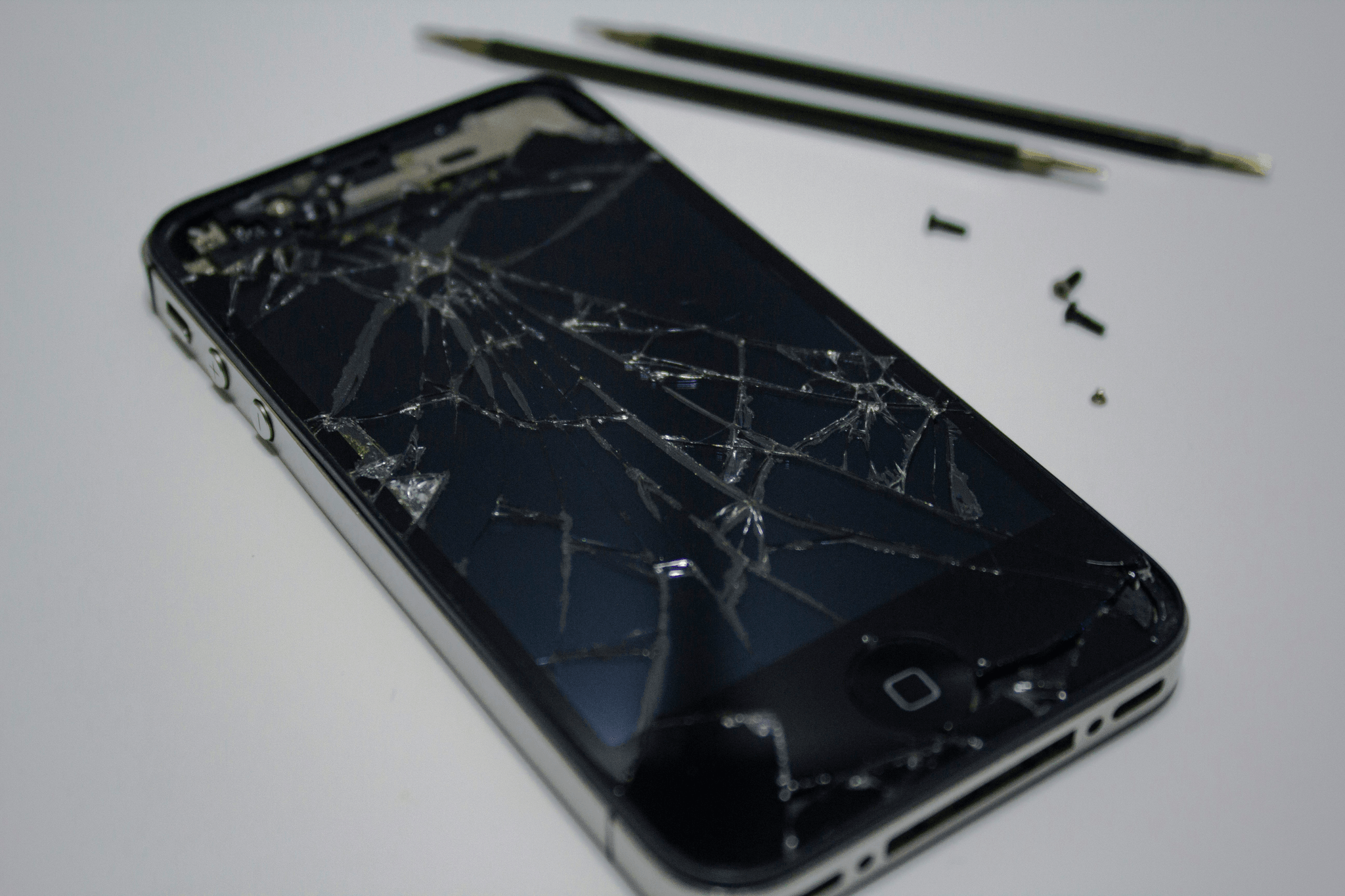
Few things are more frustrating than tapping your tablet and getting nothing in return. An unresponsive touch screen can be caused by a variety of Tablet PC Defects, from software glitches to hardware failures. Identifying the root cause quickly can save you time and money, especially if broken pixels or lines in the display are involved, which can sometimes mimic touch issues.
Diagnosing touch sensitivity problems
The first step in tackling an unresponsive touch screen is to determine whether the issue stems from software or hardware. Sometimes, foreign material behind the screen or dust inside the camera area might interfere with touch functionality, leading to false responses or dead zones. Conduct a simple test: restart your device, clean the screen gently, and see if responsiveness improves; persistent problems may indicate deeper Tablet PC Defects like damaged sensors or broken pixels.
Software solutions and calibration
Many unresponsive touch screens are fixable through software solutions such as calibration or resetting settings to factory defaults. Regular updates can also resolve bugs that cause erratic behavior related to Tablet PC Defects. If dust inside the camera or foreign material behind screen is suspected, performing a professional cleaning can restore proper contact points and eliminate interference that hampers touch sensitivity.
When to consider screen replacement
If calibration and cleaning don't resolve the unresponsive touch issues—especially when broken pixels (dots or lines in the display) are visible—it's likely time for a screen replacement. Persistent dead zones often indicate damage to internal components of the display assembly, which cannot be fixed with software alone. Addressing these Tablet PC Defects early prevents further deterioration and ensures your device remains functional.
Overheating Batteries
When your Tablet PC starts feeling like a mini frying pan, overheating batteries might be the culprit. Overheating is a common Tablet PC defect that can cause sudden shutdowns or even permanent damage if left unchecked. Recognizing the signs early can save you from costly repairs and data loss, so keep an eye on your device’s temperature.
Symptoms of battery overheating
Signs of overheating batteries in your tablet often include warm to hot surfaces during use, unexpected shutdowns, or rapid battery drain. You might also notice swelling or bulging around the battery area, which is a clear warning sign of serious issues. Ignoring these symptoms can turn minor Tablet PC defects into major headaches down the line.
Risks of ignoring overheating
Ignoring overheated batteries can lead to severe consequences such as permanent damage to internal components or even fire hazards—definitely not what you want from your trusty tablet. Over time, excessive heat accelerates battery degradation, causing more frequent failures and increasing repair costs related to common Tablet PC defects like broken pixels or display lines. Protect your device by addressing these issues promptly before they escalate into expensive fixes.
Best practices for battery maintenance
To prevent overheating batteries from turning into a costly problem, always use original chargers and avoid charging your tablet in hot environments—your device isn’t a solar panel! Regularly monitor the temperature during intensive tasks; if it gets uncomfortably warm, give it a break. Additionally, keeping software updated ensures optimal power management, reducing stress on the battery and minimizing common Tablet PC defects like unresponsive touch screens caused by thermal issues.
Conclusion
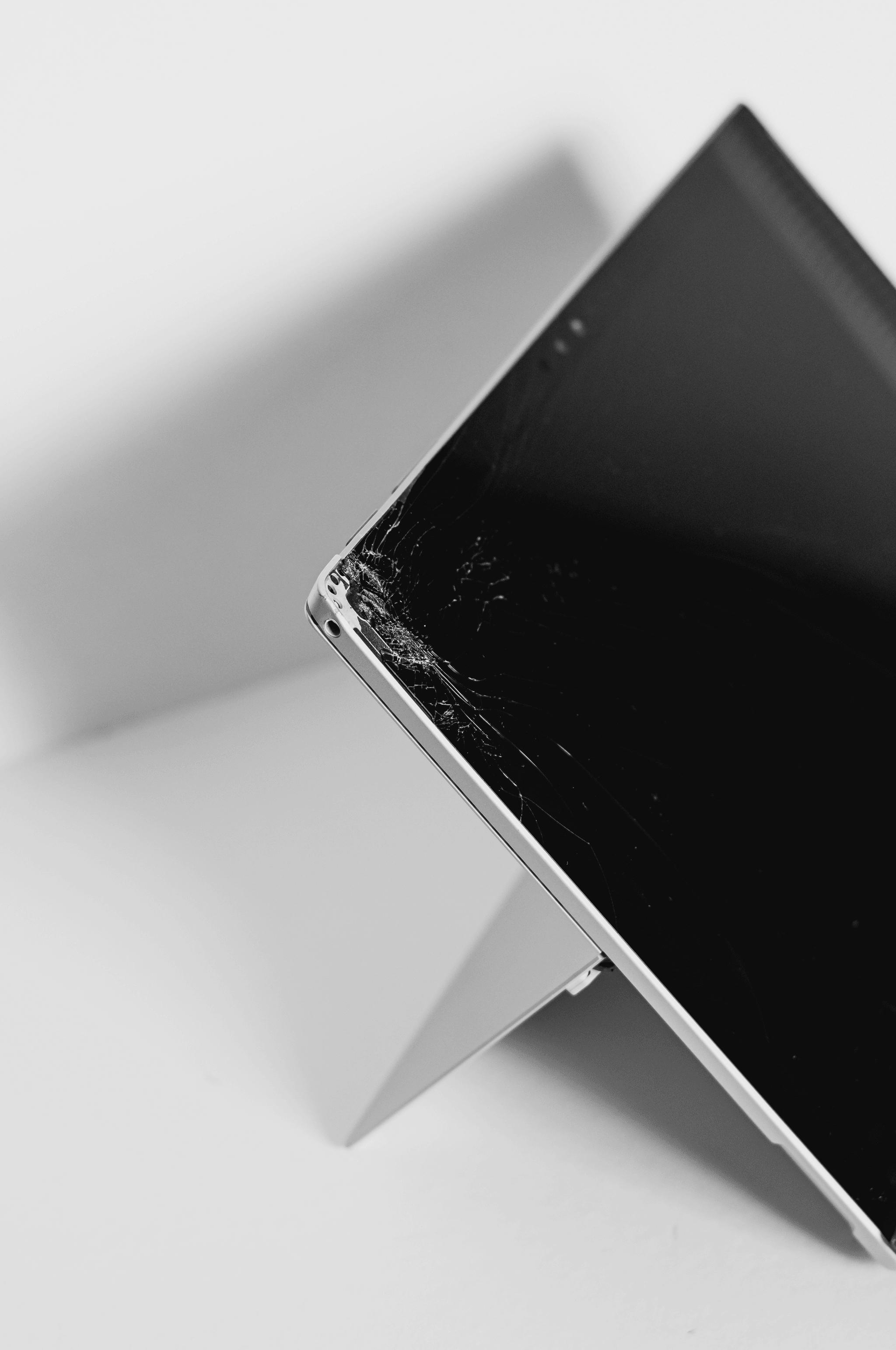
Keeping your Tablet PC in top shape isn’t just about avoiding minor annoyances; it’s about safeguarding your investment from common Tablet PC Defects that can escalate into costly repairs. Regular inspections help catch issues like broken pixels (dots or lines in the display), foreign material behind the screen, or dust inside the camera early on, preventing them from worsening. Staying vigilant ensures you enjoy a seamless experience and prolongs your device’s lifespan, saving you time and money down the line.
Regular inspections with China Inspection Pro
Partnering with China Inspection Pro for regular checks is a smart move to identify potential Tablet PC Defects before they become major problems. Routine inspections can reveal broken pixels (dots or lines in the display), foreign material behind screen, or dust inside the camera that might otherwise go unnoticed until it impacts functionality. Early detection through professional inspections keeps your device running smoothly and reduces unexpected downtime.
Preventing Tablet PC Defects proactively
Prevention is always better than cure when it comes to tablet care, especially for issues like unresponsive touch screens or overheating batteries. Simple habits such as using protective cases to prevent foreign material behind screen or avoiding exposure to extreme heat can significantly reduce the risk of Tablet PC Defects developing over time. Implementing these proactive measures helps maintain optimal performance and prevents costly repairs related to damaged displays or overheated batteries.
Ensuring a longer lifespan for your device
Taking care of your tablet by addressing common Tablet PC Defects—like repairing broken pixels (dots or lines in the display), cleaning dust inside the camera, and managing battery health—extends its useful life considerably. Regular maintenance routines combined with professional inspections ensure that issues don’t spiral out of control, keeping your device reliable for years to come. Ultimately, investing in proper care means more productive days and fewer surprises when you need your tablet most.