
Introduction

Owning a tablet PC can be a game-changer, but those sleek devices are not immune to flaws that can turn your user experience into a frustration fest. Recognizing common Tablet PC defects—like broken pixels, foreign material behind the screen, or dust inside the camera—is essential to keeping your device in top shape. Ignoring these issues can lead to more costly repairs down the line and even shorten your tablet’s lifespan.
Addressing Tablet PC defects early on is a smart move that saves you both time and money. Small problems such as unresponsive touch screens or overheating batteries often worsen if left unchecked, turning minor annoyances into major headaches. By tackling issues promptly, you ensure smoother operation and extend your device's longevity while avoiding unnecessary expenses.
Knowing how to spot early signs of hardware problems can make all the difference. Be alert for flickering lines or dots indicating broken pixels, or cloudy images caused by dust inside the camera. Spotting foreign material behind the screen or noticing your tablet overheating are also key indicators that it’s time for some professional attention—before things get worse.
Broken Pixels and Display Anomalies
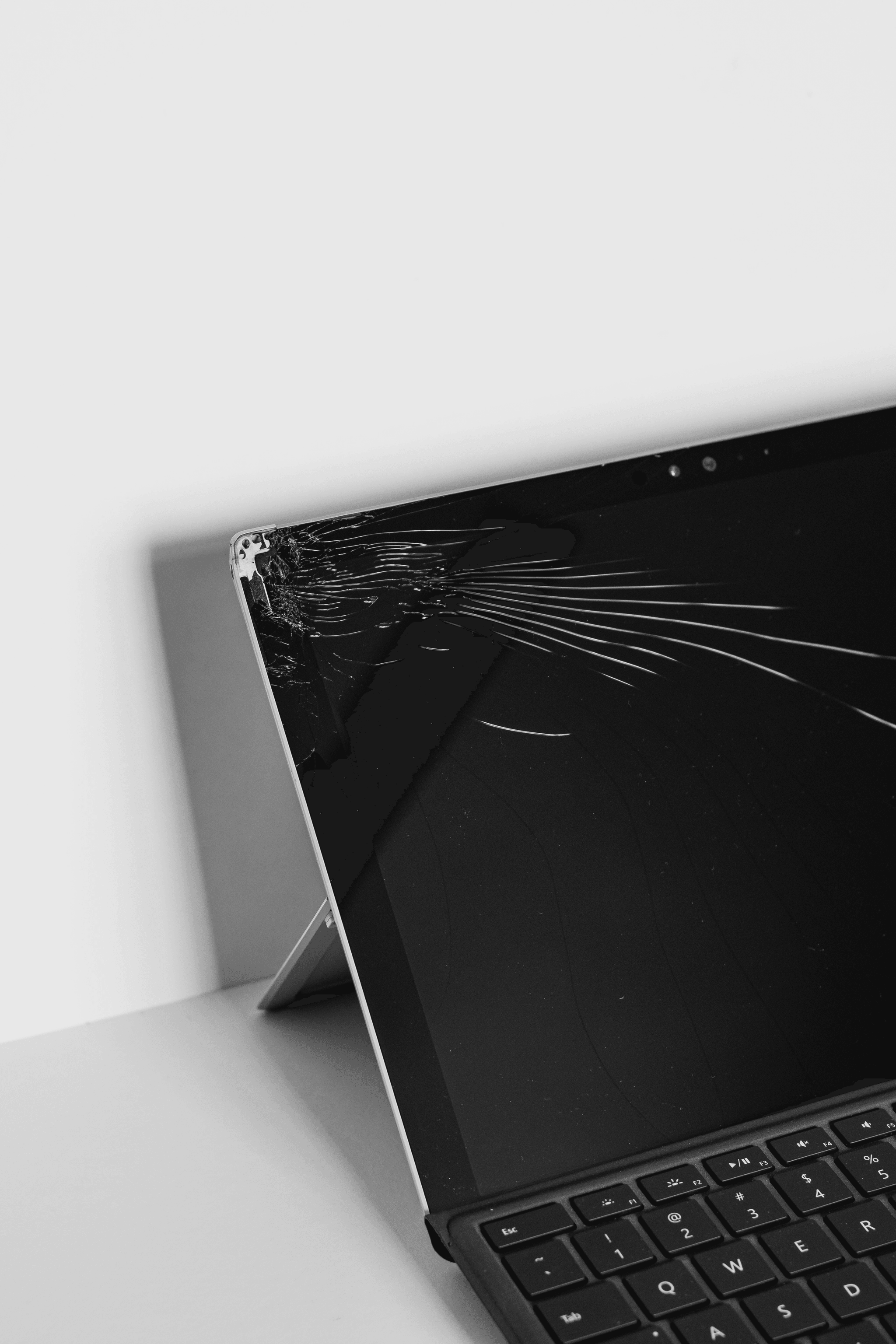
When your tablet starts acting up with strange lines or dots, it’s often a sign of underlying Tablet PC Defects. These display anomalies, like dead or stuck pixels, can be frustrating and sometimes tricky to diagnose without a keen eye. Recognizing these issues early can save you from costly repairs and help you determine if professional intervention is needed.
Identifying Dead or Stuck Pixels on Samsung Galaxy Tab or iPad
Dead pixels appear as tiny black spots that refuse to light up, while stuck pixels glow with a constant color—red, green, or blue—regardless of what’s on the screen. On your Samsung Galaxy Tab or iPad, these anomalies stand out against the vibrant display and can be distracting during everyday use. If you notice persistent dots or lines that don’t change when you tap or scroll, you’re likely dealing with broken pixels caused by Tablet PC Defects.
Causes Behind Lines or Dots in Your Tablet Display
Lines and dots in your tablet display often stem from internal damage such as pressure impact, manufacturing flaws, or wear over time. Foreign material behind screen—like dust trapped inside during assembly—can also manifest as visual irregularities resembling broken pixels. Additionally, dust inside the camera lens might seem unrelated but can indicate broader issues with dust ingress affecting other parts of your device’s hardware.
Professional Solutions for Repairing Broken Pixels
Fixing broken pixels typically requires professional repair services that can replace damaged LCD panels or perform pixel remediation techniques for stuck pixels. When dealing with persistent display anomalies caused by Tablet PC Defects, DIY fixes are risky; consulting experts ensures safe handling and restores your device’s visual clarity effectively. Remember, addressing foreign material behind screen and dust inside the camera is crucial for comprehensive repair and long-term durability.
Foreign Material Behind Screen
When your tablet’s display starts acting up, foreign material behind the screen might be the sneaky culprit. Dust, debris, or tiny particles can sneak past seals and accumulate over time, especially in devices like the Google Pixel Slate or Huawei MatePad. This unwanted guest can cause visual disturbances that make you think your Tablet PC Defects are worse than they really are.
If you notice specks, cloudy patches, or lines appearing on your screen that weren’t there before, foreign material behind screen is likely to blame. These tiny particles can distort colors and reduce clarity, making it difficult to enjoy your favorite apps or read articles clearly. Recognizing these signs early helps prevent further damage and keeps your device functioning smoothly.
Removing foreign material safely requires a bit of finesse—no poking around with sharp objects! Techniques such as using specialized compressed air or gentle cleaning solutions designed for delicate screens work best. If you’re unsure about doing it yourself, professional repair services can carefully open the device to remove dust inside the camera or debris trapped behind screen without risking additional Tablet PC Defects. Remember, handling this issue promptly saves you money and preserves your device’s lifespan.
Dust Inside the Camera Lens
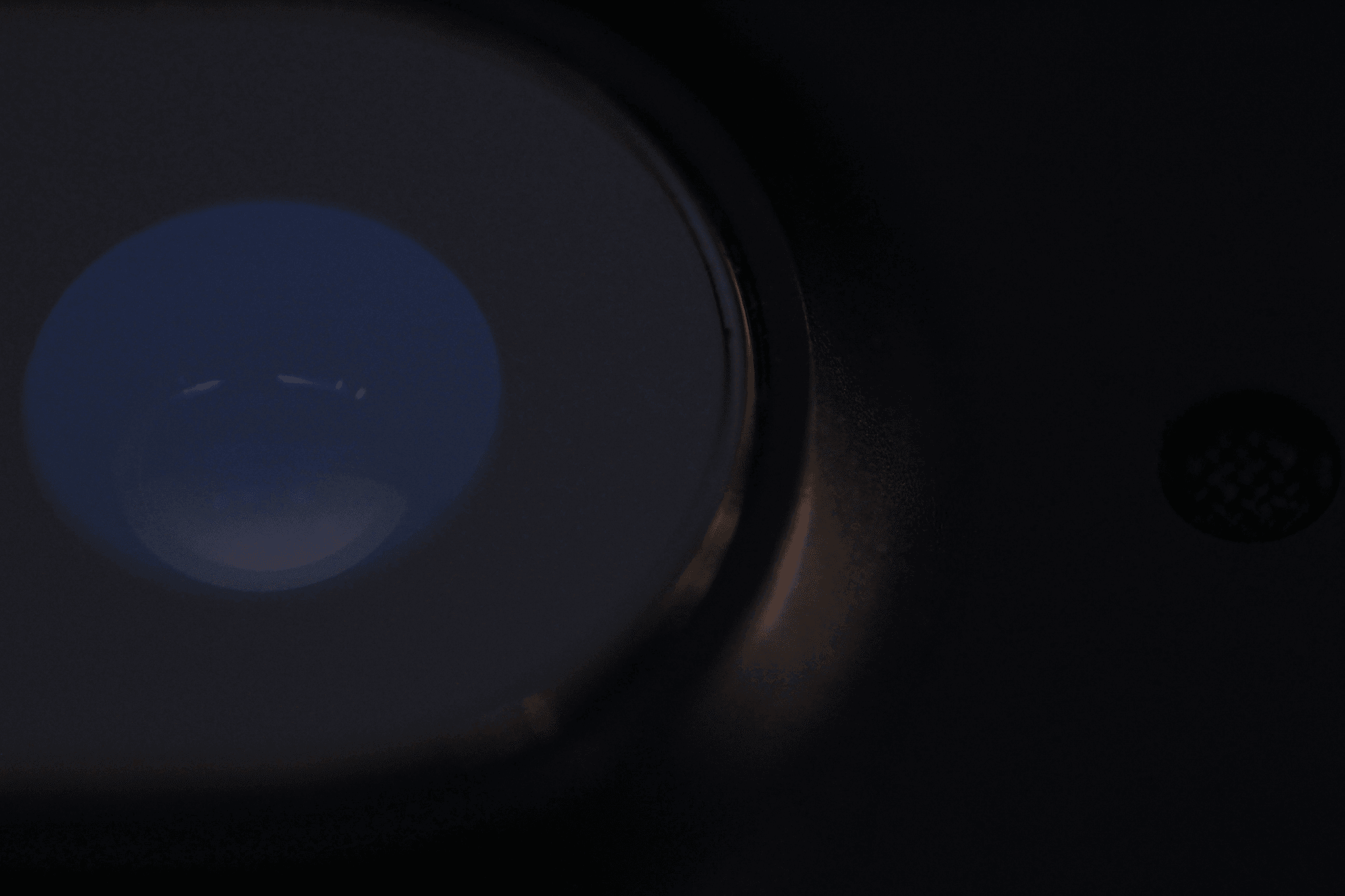
Having dust inside the camera lens of your tablet can be a real eye-sore, especially when your photos turn out foggy or spotty. This common Tablet PC defect often sneaks in through tiny gaps, making your once crystal-clear images look more like abstract art. If you notice blurry pictures or spots that won’t go away no matter how many filters you try, chances are dust has invaded your tablet’s camera.
Dust inside the camera is one of those pesky Tablet PC defects that can seriously impact photo quality. When dust particles settle inside the lens or sensor area, they cause unwanted specks and haze, ruining otherwise sharp images. Over time, this accumulation can become more pronounced, turning simple snapshots into frustrating attempts at photography.
Cleaning and preventing dust ingress in tablet cameras isn’t rocket science but does require some care. Regularly inspecting your device for signs of dust behind screen components can save you from costly repairs later on. Using compressed air or professional cleaning tools helps keep those tiny particles out of reach and preserves your tablet’s camera performance over the long haul.
Unresponsive Touch Screen Issues
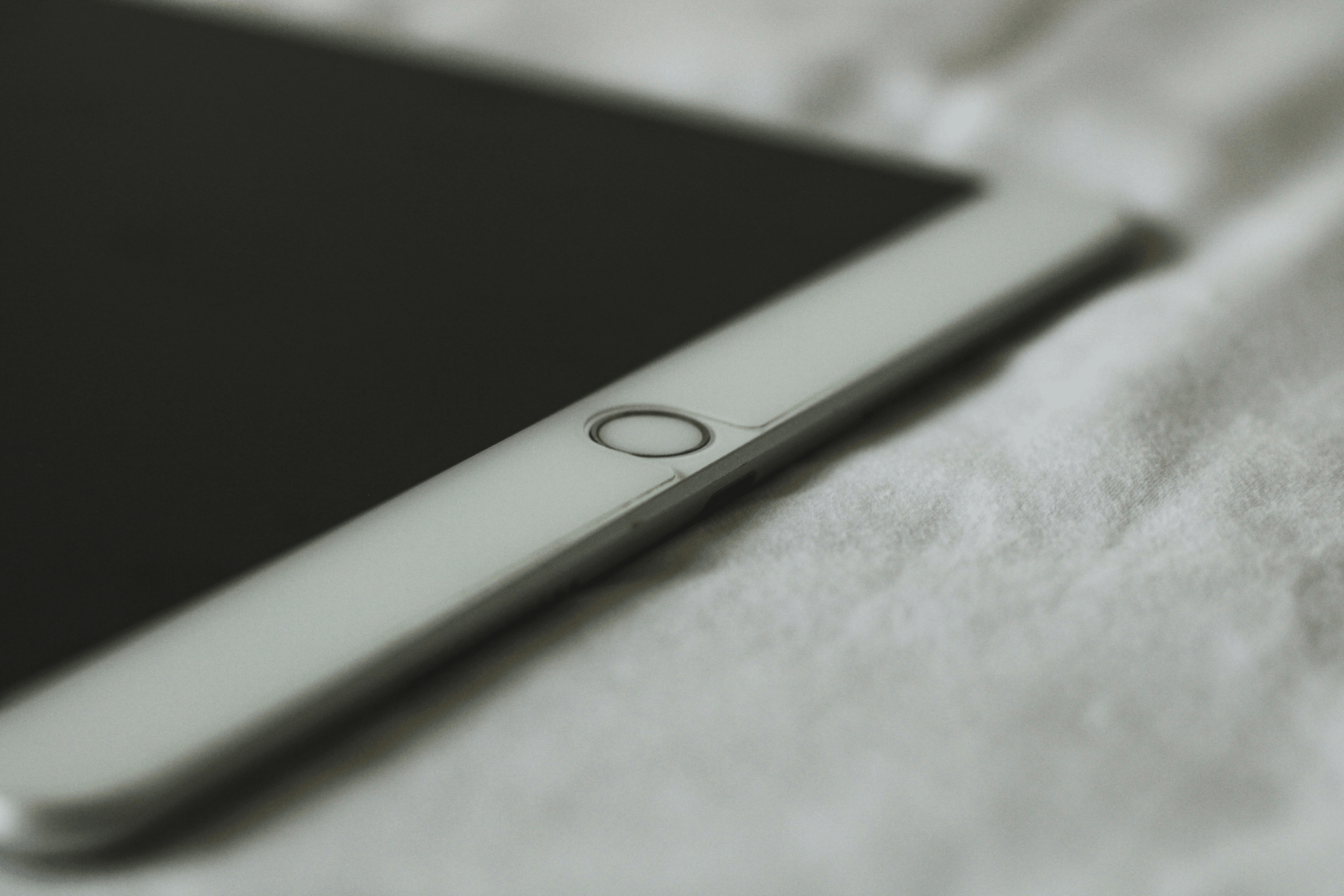
Nothing kills productivity faster than a tablet screen that refuses to cooperate. When your Amazon Fire Tablet or Lenovo Tab suddenly becomes unresponsive, it’s often a sign of underlying Tablet PC Defects that need quick attention. From broken pixels disrupting display clarity to dust inside the camera affecting photos, these issues can seem minor but are symptomatic of deeper hardware problems.
Troubleshooting Touch Sensitivity Problems on Amazon Fire Tablets or Lenovo Tab
Start by cleaning the screen gently with a microfiber cloth—sometimes, dirt or foreign material behind screen layers can interfere with touch sensitivity. If cleaning doesn’t help, check for software updates; outdated firmware can cause unresponsive touch screens and other Tablet PC Defects. Resetting the device to factory settings might also resolve temporary glitches but remember, persistent issues could hint at more serious hardware flaws like broken pixels or dust inside the camera affecting overall performance.
Why Your Tablet Might Not Respond and How to Fix It
Unresponsive touch screens often stem from hardware failures such as damaged connectors or foreign material behind screen layers that disrupt electrical signals. Dust inside the camera or inside internal components can exacerbate these problems by causing interference—another common Tablet PC Defect that impacts responsiveness. If simple troubleshooting doesn’t restore function, professional repair may be necessary to address underlying issues like overheating batteries which sometimes cause touchscreen malfunctions due to thermal stress.
Tips for Improving Touch Screen Responsiveness Without a Visit to China Inspection Pro
To boost responsiveness without professional help, keep your device cool—overheating batteries are notorious for causing unresponsiveness—and avoid exposing it to extreme temperatures. Regularly clean your screen and ensure no foreign material behind screen layers is trapped; this prevents dead spots and improves touch accuracy. Lastly, consider installing app updates and calibrating your touchscreen if options are available—these small steps can improve overall performance without costly repairs.
Overheating Batteries
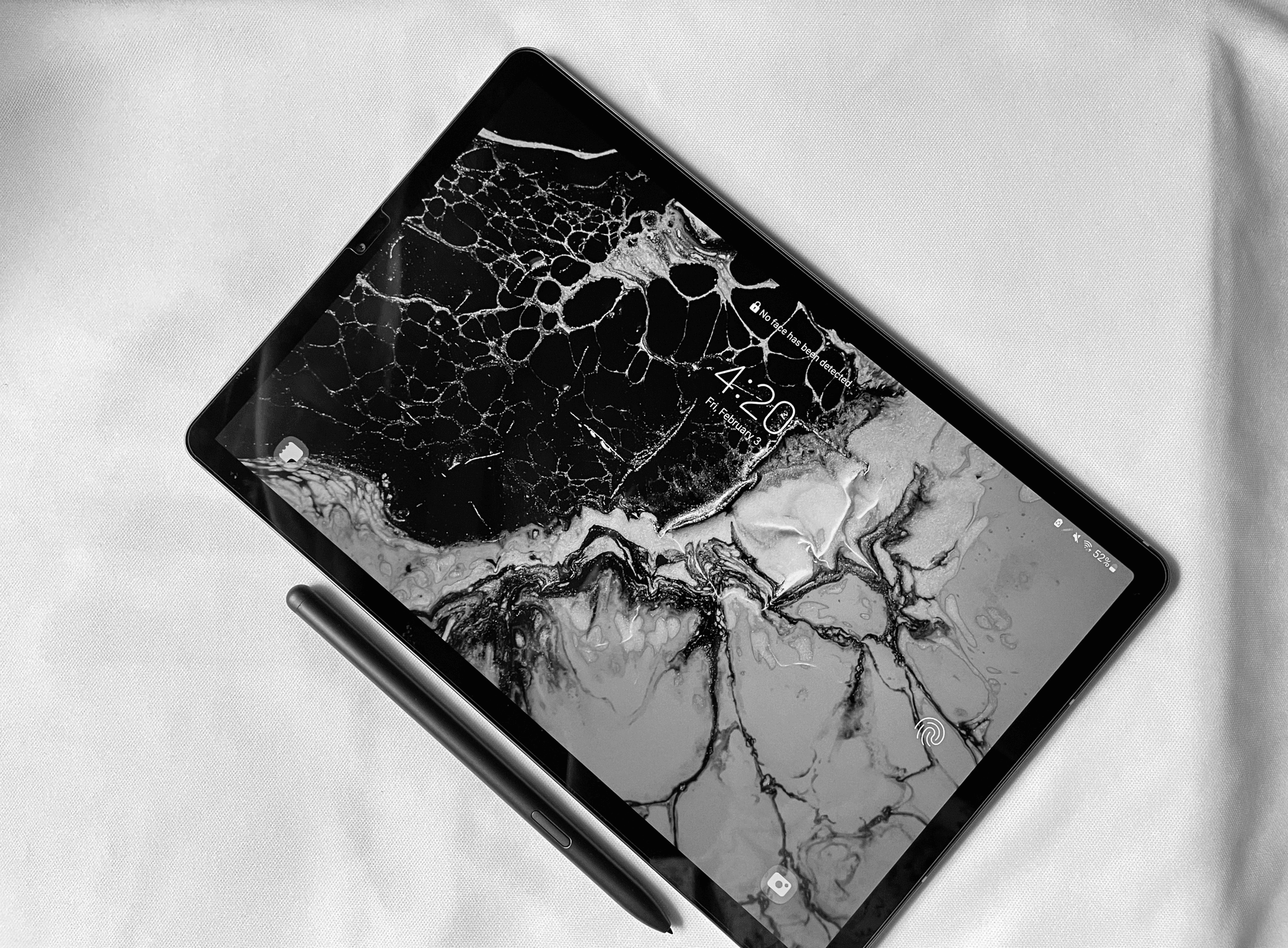
When your Tablet PC starts feeling like it’s auditioning for a hot yoga class, it’s time to pay attention. Overheating batteries are one of the most frustrating tablet PC defects because they threaten both performance and longevity. If you notice your device getting uncomfortably warm during use or charging, don’t ignore it—your tablet might be warning you about more serious issues like damaged batteries or internal faults.
When Your Google Pixel Tablet or Samsung Tab Gets Uncomfortably Hot
If your Google Pixel Tablet or Samsung Tab begins to heat up excessively during normal operation, it’s a clear sign of potential tablet PC defects related to the battery or internal components. Overheating can happen due to broken pixels causing short circuits or foreign material behind screen interfering with heat dissipation. Recognizing these early signs helps prevent permanent damage and keeps your device running smoothly longer.
The Risks of Overheating and How It Affects Device Longevity
Overheating batteries pose significant risks, including accelerated wear on internal components and even potential safety hazards like swelling or explosions—talk about a fiery situation! Persistent overheating can lead to reduced battery life, sluggish performance, and in worst cases, permanent damage from dust inside the camera or debris affecting critical parts. Addressing overheating promptly is crucial for avoiding costly repairs caused by neglected tablet PC defects that worsen over time.
Best Practices to Cool Down and Extend Your Tablet’s Battery Life
To keep those overheating batteries in check, avoid exposing your device to direct sunlight or high temperatures—think twice before leaving your tablet in a hot car! Regularly inspect for foreign material behind screen that might trap heat, and clean dust inside the camera lens area which can contribute to thermal issues. Using power-saving modes, updating software regularly, and removing unnecessary background apps are simple steps toward extending your tablet’s battery life while preventing common tablet PC defects linked with overheating.
Conclusion
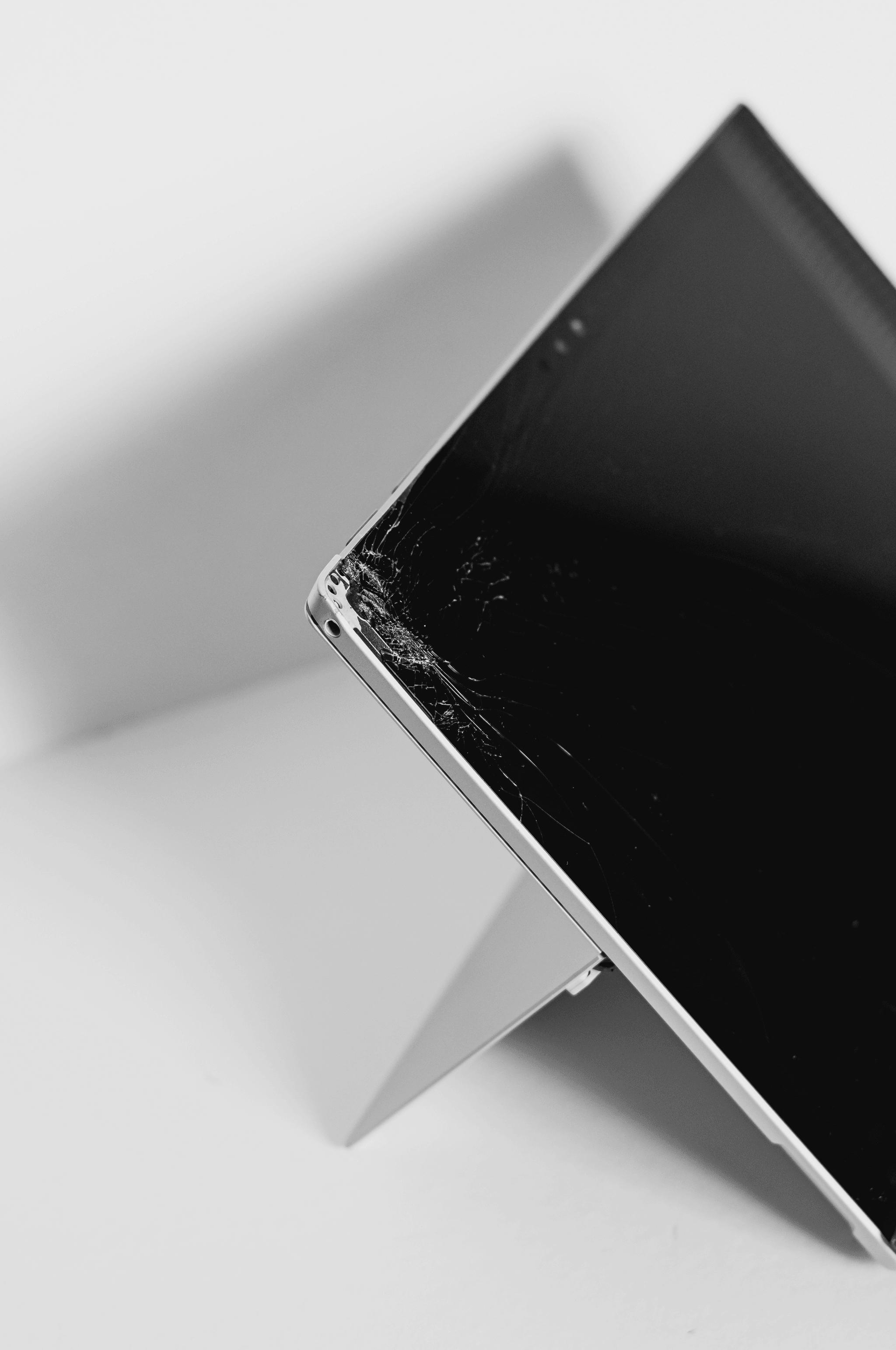
Dealing with Tablet PC Defects can be frustrating, but many common issues have straightforward fixes that can save you time and money. From tiny broken pixels to stubborn dust inside the camera, understanding these problems helps you tackle them head-on before they worsen. Remember, recognizing early signs of tablet hardware issues is key to maintaining your device’s longevity and performance.
Quick Fixes for Common Tablet PC Defects
Many tablet PC defects such as broken pixels (dots or lines in the display) or unresponsive touch screens can often be remedied with simple troubleshooting steps. For instance, restarting your device or performing a soft reset might temporarily resolve unresponsive touch screen issues. Cleaning the screen gently or adjusting display settings can also fix minor display anomalies caused by foreign material behind screen or dust inside the camera.
When to Seek Professional Help for Persistent Issues
If problems like persistent broken pixels, foreign material behind the screen, or overheating batteries continue despite basic fixes, it’s time to consult a professional. These issues often require specialized tools and expertise to repair properly without risking further damage. Ignoring ongoing tablet PC defects like dust inside the camera or severe display anomalies can lead to more costly repairs down the line—so don’t hesitate to get expert help when needed.
Ensuring Long-Term Durability with Regular Quality Inspection by China Inspection Pro
To keep your tablet functioning smoothly over time, regular quality inspections are essential—especially if you rely heavily on your device for work or entertainment. Routine checks help identify potential tablet PC defects early on, such as developing lines in displays or dust inside the camera that could impair performance later. Partnering with professionals like China Inspection Pro ensures your device stays durable and reliable long-term by catching issues like foreign material behind screen before they escalate.